Signing Codeberg GIT commits with SSH and 1Password
After moving away from GitHub to my local GIT server, I’ve recently decided to move one more time; back to a solution connected to the internet. While running my GIT server was surprisingly easy, I missed being able to push and pull while working remotely, and I did not fancy connecting my server to the internet—I’m not a security expert. The service I decided on is Codeberg.org, a non-profit from Berlin, Germany.
Part of my setup was to enable signing commits, for which I created an SSH key using 1Password. Most of the process is self-explanatory, 1Password offers to auto-generate and save a private-public SSH key pair when you open the SSH-/GPG-Key preferences page on Codeberg.org. If you enable the SSH agent in 1Password, it will also automatically sign your GIT commits whenever you commit in a code editor that supports signing—like Nova by Panic Inc (not sponsored, I just like them). And while Codeberg.org will show that the commit was signed, it will mark it as unverified. The fix is fairly easy:
Here is how you verify your SSH key for Codeberg:
First, you should be aware that Codeberg is a Fork of Gitea. The signature you need to generate for Codeberg will looke like it’s for Gitea, and that is not an error. To prepare, you’ll need to install the 1Password command line tools, and then export your private key from 1Password and change its permissions:
op read "op://[VAULT NAME]/[ITEM NAME]/private key?ssh-format=openssh" > /tmp/temporary_private_key
chmod 600 /tmp/temporary_private_key
The first line exports the private key (you’ll need to edit it to access the correct Vault and item. The second line changes the permissions so only you can access it—this is important because ssh-keygen will otherwise most likely ignore the file.
Codeberg provides you with a command you should copy and paste into your Terminal—yes, really—and modify so it actually works. Before you copy this line, you should refresh the page though because that command provided by Codeberg contains a temporary key, which is not valid for long. Once pasted into the terminal, edit it to point to your private key:
echo -n '<key>' | ssh-keygen -Y sign -n gitea -f /tmp/temporary_private_key
Run this, and copy the result into the Codeberg website. Click the button to verify straight away, the result won’t be valid for long. Now you have to clean up, because your private key is still sitting unencrypted on your hard drive, and it really should not!
rm /tmp/temporary_private_key
Done—your commits should now be signed with a verified signature when you commit and push to Codeberg. It should look something like this:
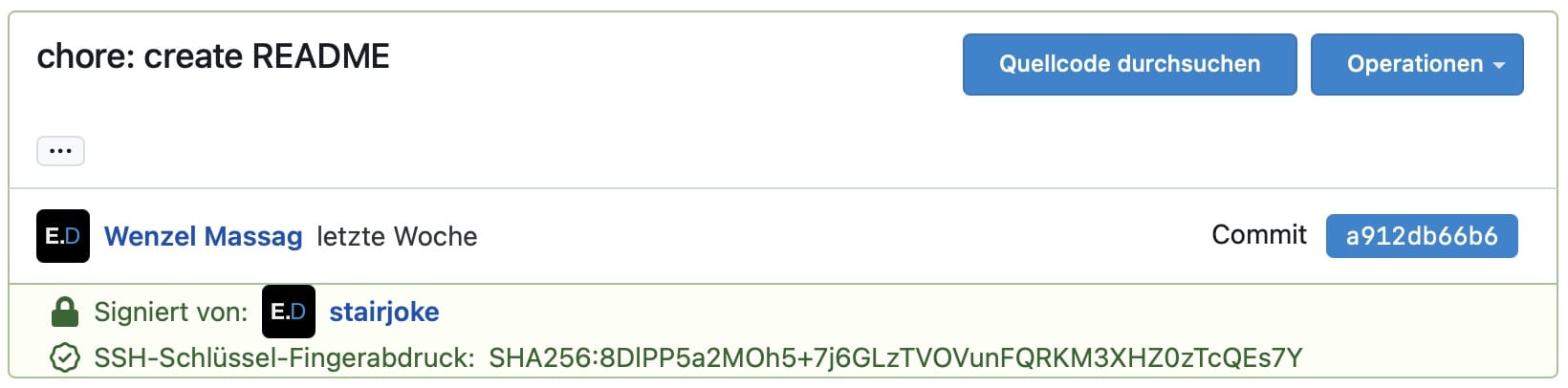
A commit on Codeberg.org, signed with a verified signature. The commit info has an added section below in green which shows who committed and what key was used.